> ## Documentation Index
> Fetch the complete documentation index at: https://mixpanel-edb78807-tylergoerzen-tof-685-open-source-sdks.mintlify.site/llms.txt
> Use this file to discover all available pages before exploring further.
# Audit Log
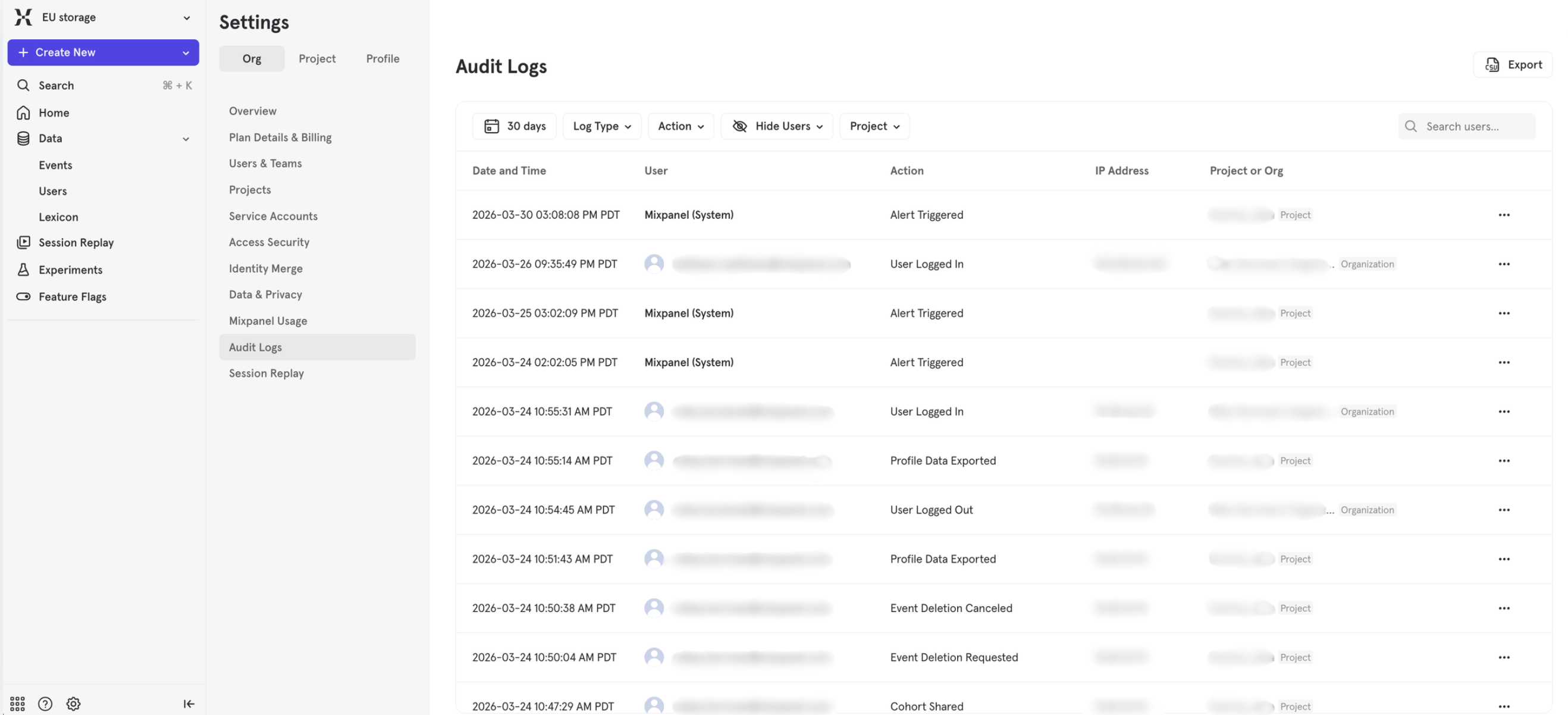
Mixpanel's audit log tracks activity within your organization and projects, providing visibility into who made changes, when they occurred, and what was modified. The audit log helps teams maintain security, troubleshoot issues, and meet compliance requirements.
The audit log is available on all plans. Free and Growth plans retain logs for 90 days. Enterprise plans retain logs for 2 years. See our [pricing page](https://mixpanel.com/pricing/) for more details.
## Accessing the Audit Log
You can access the audit log at two levels:
* **Organization-level logs** — Found in Organization Settings. Accessible to organization admins and owners, these log all events across the organization, including user authentication, service account management, and more.
* **Project-level logs** — Found in Project Settings. Accessible to project admins and owners, these logs include project-specific events like report creation and data exports.
Some events appear only at the organization level. Most appear in both organization and project logs.
1. **Navigate to Organization Settings or Project Settings** by clicking the gear icon in the bottom left navigation > Settings.
2. **Select Audit Log** from the sidebar menu.
3. **View the activity log** showing recent events, who performed them, and when they occurred.
 ## Tracked Events
See [Audit Log Reference](/docs/access-security/audit-log-reference) for a complete list of all tracked events, including descriptions and availability dates.
## MCP Activity
**Beta.** The MCP Audit Log is currently available to a limited set of customers during Beta. If you'd like to participate, [request access here](https://mxpnl.notion.site/52931ceda0e94fa2bda6cb18420b5113?pvs=105).
When someone connects an AI assistant to Mixpanel through the [MCP server](/docs/mcp), the changes that assistant makes are recorded in the same audit log as changes made in the Mixpanel UI — attributed to the Mixpanel account whose credentials the assistant is using, and marked as having come from MCP.
### What Gets Logged
Every MCP tool that changes something records an entry. That covers all of Mixpanel's write tools — boards, cohorts, experiments, feature flags, metrics, lookup tables, custom properties, Lexicon metadata, tags, and business context.
Two things are deliberately **not** logged:
* **Read-only tool calls.** Running a query, reading a report, or listing cohorts through MCP produces no audit entry, consistent with how the Mixpanel UI treats the same actions.
* **Failed tool calls.** Only changes that actually took effect are recorded.
### Identifying MCP Activity
In the audit log UI, MCP entries carry an **Origin** of MCP, and the **Origin** filter narrows the table to a single source. In [exports](#exporting-the-audit-log) and the audit log API, the same information is the `service` field, and MCP entries carry the value `mcp`.
Entries are attributed to the account the assistant is connected as. If that is a [service account](/docs/mcp#connecting-with-service-accounts) shared by a team, the entry identifies the service account rather than the person who initiated the action.
For a clue about *which* AI client made a change, read the `http_user_agent` field on the MCP tool call entry — for example, `claude-code/2.1.281 (claude-desktop, agent-sdk/0.3.281)`. The value is client-supplied, so treat it as a hint rather than proof of identity.
### How Many Entries an Action Produces
A single MCP action usually produces more than one audit entry:
* **One MCP tool call entry** — event type `mcp_tool_call.performed` — recording which tool was run and the arguments it was given.
* **One detailed entry per object that changed**, including its before and after state.
Creating a board with ten reports through MCP, for example, produces one tool call entry, one `board.created` entry, and ten `bookmark.created` entries.
Objects that Mixpanel does not audit in their own right — tags, metrics, custom properties, lookup tables, and business context — produce only the tool call entry, with no before/after state.
### Retention
MCP tool call entries are retained for **90 days on all plans, including Enterprise**, rather than the standard retention described above. The detailed entries are unaffected: a board, cohort, experiment, or feature flag change follows your plan's standard retention regardless of whether it came from MCP.
### Things to Know
* **The IP address is not the user's.** On an MCP tool call entry, the recorded IP address belongs to the server making the tool call (typically your AI provider's, such as Anthropic's or OpenAI's), not the device of the person using the assistant. Use the user field, not the IP address, to identify who performed an MCP action. The detailed entries have no IP address at all.
* **MCP entries can take several minutes to appear.** If a recent action is missing, wait and refresh before treating it as unlogged.
* **Very large arguments are dropped.** If a tool call's arguments exceed 64 KB, the MCP tool call entry records none of them and sets `arguments_truncated` to true. The detailed entries still carry the full before/after state.
* **Connecting and disconnecting an MCP client is not yet recorded.** Only the actions taken through a connection are logged.
Organization admins and owners can also query this history conversationally with the `Get-Audit-Log` tool — see [Querying the Audit Log](/docs/mcp#querying-the-audit-log) on the MCP server page.
## Exporting the Audit Log
You can export the audit log to CSV or NDJSON (newline-delimited JSON) for further analysis or archival. The export contains the raw data for each event. CSV is convenient for spreadsheets and quick analysis. NDJSON preserves the full nested structure of each event, which suits programmatic processing or ingestion into log pipelines.
1. **Navigate to the audit log** page in Organization Settings or Project Settings.
2. **Click the Export button** and choose your format—**CSV** or **NDJSON**—from the dropdown to download the current view of the audit log.
3. The export includes all visible events within the selected time range.
## Limitations
* **Retention periods** vary by plan:
* Free & Growth plans: 90 days
* Enterprise plans: 2 years
* [MCP tool call entries](#retention): 90 days on all plans
* **Organization-only events** (service account management, login/logout, two-factor auth) are only visible in Organization Settings, not Project Settings.
* **Read-only actions are not logged**, whether taken in the Mixpanel UI or [through MCP](#what-gets-logged). The audit log records changes, not views or queries.
* **Not all object types are audited.** Changes to some object types — including tags, metrics, custom properties, lookup tables, and business context — are recorded when made [through MCP](#how-many-entries-an-action-produces), but not when made in the Mixpanel UI.
## FAQ
#### Who can access the audit log?
Only users with Admin or Owner roles in an organization or project can view the audit log for that organization or project. You can configure custom roles to include audit log access as well.
#### Can I filter the audit log by event type or user?
Yes, the audit log interface provides filtering options to help you find specific events or actions by particular users. The **Origin** filter also narrows the table to a single source, such as [MCP](#identifying-mcp-activity).
#### Can I tell whether a change was made by a person or by an AI assistant?
Yes. Changes made through the [MCP server](/docs/mcp) have an **Origin** of MCP, and are attributed to the Mixpanel account whose credentials the assistant is connected with. See [MCP Activity](#mcp-activity).
#### What's the difference between the organization and project audit logs?
Most events appear in both places. The organization audit log contains additional organization-wide events like user authentication and service account creation. The project audit log is limited to project-specific events. The scope field on the audit log reference page indicates which audit log will contain the event. If there is no scope column in a table, the event appears in both the organization and project audit logs.
## Tracked Events
See [Audit Log Reference](/docs/access-security/audit-log-reference) for a complete list of all tracked events, including descriptions and availability dates.
## MCP Activity
**Beta.** The MCP Audit Log is currently available to a limited set of customers during Beta. If you'd like to participate, [request access here](https://mxpnl.notion.site/52931ceda0e94fa2bda6cb18420b5113?pvs=105).
When someone connects an AI assistant to Mixpanel through the [MCP server](/docs/mcp), the changes that assistant makes are recorded in the same audit log as changes made in the Mixpanel UI — attributed to the Mixpanel account whose credentials the assistant is using, and marked as having come from MCP.
### What Gets Logged
Every MCP tool that changes something records an entry. That covers all of Mixpanel's write tools — boards, cohorts, experiments, feature flags, metrics, lookup tables, custom properties, Lexicon metadata, tags, and business context.
Two things are deliberately **not** logged:
* **Read-only tool calls.** Running a query, reading a report, or listing cohorts through MCP produces no audit entry, consistent with how the Mixpanel UI treats the same actions.
* **Failed tool calls.** Only changes that actually took effect are recorded.
### Identifying MCP Activity
In the audit log UI, MCP entries carry an **Origin** of MCP, and the **Origin** filter narrows the table to a single source. In [exports](#exporting-the-audit-log) and the audit log API, the same information is the `service` field, and MCP entries carry the value `mcp`.
Entries are attributed to the account the assistant is connected as. If that is a [service account](/docs/mcp#connecting-with-service-accounts) shared by a team, the entry identifies the service account rather than the person who initiated the action.
For a clue about *which* AI client made a change, read the `http_user_agent` field on the MCP tool call entry — for example, `claude-code/2.1.281 (claude-desktop, agent-sdk/0.3.281)`. The value is client-supplied, so treat it as a hint rather than proof of identity.
### How Many Entries an Action Produces
A single MCP action usually produces more than one audit entry:
* **One MCP tool call entry** — event type `mcp_tool_call.performed` — recording which tool was run and the arguments it was given.
* **One detailed entry per object that changed**, including its before and after state.
Creating a board with ten reports through MCP, for example, produces one tool call entry, one `board.created` entry, and ten `bookmark.created` entries.
Objects that Mixpanel does not audit in their own right — tags, metrics, custom properties, lookup tables, and business context — produce only the tool call entry, with no before/after state.
### Retention
MCP tool call entries are retained for **90 days on all plans, including Enterprise**, rather than the standard retention described above. The detailed entries are unaffected: a board, cohort, experiment, or feature flag change follows your plan's standard retention regardless of whether it came from MCP.
### Things to Know
* **The IP address is not the user's.** On an MCP tool call entry, the recorded IP address belongs to the server making the tool call (typically your AI provider's, such as Anthropic's or OpenAI's), not the device of the person using the assistant. Use the user field, not the IP address, to identify who performed an MCP action. The detailed entries have no IP address at all.
* **MCP entries can take several minutes to appear.** If a recent action is missing, wait and refresh before treating it as unlogged.
* **Very large arguments are dropped.** If a tool call's arguments exceed 64 KB, the MCP tool call entry records none of them and sets `arguments_truncated` to true. The detailed entries still carry the full before/after state.
* **Connecting and disconnecting an MCP client is not yet recorded.** Only the actions taken through a connection are logged.
Organization admins and owners can also query this history conversationally with the `Get-Audit-Log` tool — see [Querying the Audit Log](/docs/mcp#querying-the-audit-log) on the MCP server page.
## Exporting the Audit Log
You can export the audit log to CSV or NDJSON (newline-delimited JSON) for further analysis or archival. The export contains the raw data for each event. CSV is convenient for spreadsheets and quick analysis. NDJSON preserves the full nested structure of each event, which suits programmatic processing or ingestion into log pipelines.
1. **Navigate to the audit log** page in Organization Settings or Project Settings.
2. **Click the Export button** and choose your format—**CSV** or **NDJSON**—from the dropdown to download the current view of the audit log.
3. The export includes all visible events within the selected time range.
## Limitations
* **Retention periods** vary by plan:
* Free & Growth plans: 90 days
* Enterprise plans: 2 years
* [MCP tool call entries](#retention): 90 days on all plans
* **Organization-only events** (service account management, login/logout, two-factor auth) are only visible in Organization Settings, not Project Settings.
* **Read-only actions are not logged**, whether taken in the Mixpanel UI or [through MCP](#what-gets-logged). The audit log records changes, not views or queries.
* **Not all object types are audited.** Changes to some object types — including tags, metrics, custom properties, lookup tables, and business context — are recorded when made [through MCP](#how-many-entries-an-action-produces), but not when made in the Mixpanel UI.
## FAQ
#### Who can access the audit log?
Only users with Admin or Owner roles in an organization or project can view the audit log for that organization or project. You can configure custom roles to include audit log access as well.
#### Can I filter the audit log by event type or user?
Yes, the audit log interface provides filtering options to help you find specific events or actions by particular users. The **Origin** filter also narrows the table to a single source, such as [MCP](#identifying-mcp-activity).
#### Can I tell whether a change was made by a person or by an AI assistant?
Yes. Changes made through the [MCP server](/docs/mcp) have an **Origin** of MCP, and are attributed to the Mixpanel account whose credentials the assistant is connected with. See [MCP Activity](#mcp-activity).
#### What's the difference between the organization and project audit logs?
Most events appear in both places. The organization audit log contains additional organization-wide events like user authentication and service account creation. The project audit log is limited to project-specific events. The scope field on the audit log reference page indicates which audit log will contain the event. If there is no scope column in a table, the event appears in both the organization and project audit logs.